
SharePoint Premium extends the capabilities available within the Microsoft 365 SharePoint Online platform.
Since early 2024, Microsoft Syntex is now part of Microsoft SharePoint Premium, a broader suite of tools that further enhance document and knowledge management capabilities with Microsoft 365, including enhanced content experiences, document translation, eSignature, advanced content collaboration, lifecycle and backup and archive capabilities.
At the time of writing, many of the Microsoft articles still refer to Microsoft Syntex – this will be updated gradually overtime.
Microsoft SharePoint Premium includes the following key features, grouped accordingly to their use:
- Document Creation & Classification:
- Expediate Document Creation with Content Assembly.
- Automating Document Classification with Pre-Built Models.
- Automating Document Classification with Custom Models.
- Premium Document Functionality:
- Enhanced Content Experiences.
- Build Intelligent Insights with Content Processing.
- Automate multi-lingual workforce using AI Document Translation.
- Digital Signatures with eSignature.
- Enhance metadata with Premium Taxonomy Features.
- Advanced SharePoint Administration:
- Secure content with Advanced Content Collaboration.
- Govern content with Advanced Content Lifecycle Management.
- Manage storage costs economically with Microsoft 365 Archive.
- Ensure Business Continuity with Microsoft 365 Backup.
- An overview of each of these features is outlined in the following sections: with a deep dive provided for each in the subsequent chapters.
Document Creation & Classification
Content Assembly
SharePoint Premium provides powerful Content Assembly features that allow organizations to effortlessly and accurately generate consistent, repetitive documents via the use of ‘Modern Templates’.
Content Assembly is a process where technology is used to automatically generate documents by assembling pre-defined content blocks according to specific rules and templates.
This functionality is especially beneficial for producing a range of documents such as contracts, statements of work, service agreements, letters of consent, invoices, quotes, sales pitches, and general correspondence.
SharePoint Premium uses the term ‘Modern Template’ to define the structure by which documents are created from. These templates are in essence existing document templates that you are most likely using already, which are uploaded to a Content Assembly enabled SharePoint Document Library.
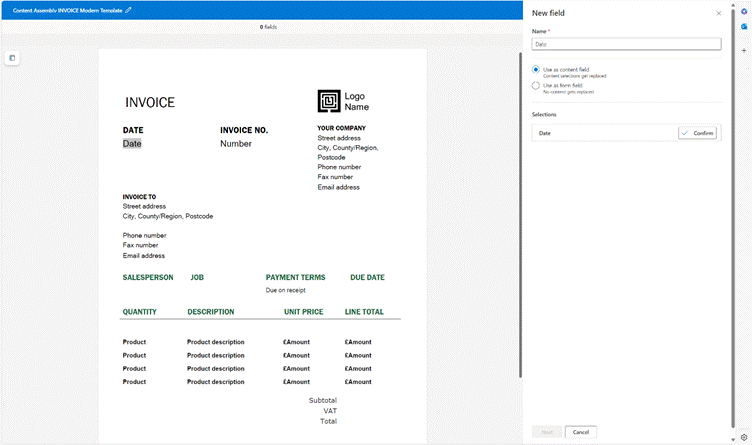
SharePoint Premium provides an intuitive and easy to use interface for users within an organization to make their document templates ‘Modern Templates’ by mapping fields from their template to SharePoint columns.
A simplified overview of the steps required are outlined below:
- Create your document template in Microsoft Word.
- Upload your document template to a Content Assembly enabled SharePoint Library. This now becomes a ‘Modern Template’.
- Using the Content Assembly interface, map your document template fields to a corresponding data source. Repeat the process for each field.
- You can map your fields in your document template to either a: New Column, Existing SharePoint List or Library, Managed Metadata Terms Set or Term.
- Using the Content Assembly interface, apply any conditional sections as required.
- When creating your modern template, specify which (if any) parts of the document will be included and under what conditions.
- Publish your modern template.
- Communicate to your users that a new document template has been published; new documents can now be created from within this library using the template.
Content Assembly can be further enhanced with the automation and creation of documents with Power Automate (please refer to chapter x for further reading on customization possibilities).
Further, detailed information on Content Assembly can be found in Chapter X.
Document Classification & Extraction
Document Classification & Extraction is a transformative AI process that significantly enhances the efficiency and accuracy of managing vast amounts of data within an organization.
Document Classification technology systems leverage advanced machine learning and artificial intelligence (AI) algorithms to automatically identify, classify, and process documents, reducing the reliance on manual data entry and minimizing human error.
A key benefit of automating document classification and automatically extracting key information and metadata is its ability to streamline workflow process and take advantage of automated system integration capabilities (i.e. validating extracting data to other line of business systems, such as a finance system).
SharePoint Premium enables two types of document classification and extraction: ‘Structured Document Classification’ using pre-built models and ‘Unstructured Document Classification’ using custom models.
Historically, a key component that made up the vast majority of what was Microsoft Syntex, was in relation to Document Classification & Extraction – and is therefore one of the more mature / feature rich features of SharePoint Premium.
Once a document has been classified; it is then possible to apply both a retention label and/or a sensitivity label.
Structured Document Classification
Pre-built document processing models are pre-configured AI models that are used to recognize various types of documents and the structured information within them.
Instead of developing a new custom model from scratch, you can use one of the many pre-trained models available within the SharePoint Premium Content Centre, including:
- Contract processing
- Invoice processing
- Receipt processing.
The structured document processing model, also known as the ‘layout method’, is designed to automatically identify field and table values. These pre-built models utilize optical character recognition (OCR) in combination with deep learning techniques to identify and extract predefined text and data fields common to specific document types.
Document Classification models (both pre-built and custom) are created and managed within a SharePoint Premium Content Center. The Content Center provides the ability to not only create and train the models but is also used to manage information about which document libraries published models have been applied to. It is possible to have multiple Content Centers – typically you would provision one for each department / business requirement – providing a means to group and control AI models together.
When a model is published to a SharePoint document library, the model is linked to a content type and includes columns to store the extracted information.

A simplified overview of the steps required to create a pre-trained model is outlined below:
- Create an enterprise model from within your Content Centre
- Specify the Name, Description, Content Type and Compliance settings
- Upload an example file for the model to analyze
- Select the metadata extractors required, and map to SharePoint columns
- Save the model and publish to your chosen, named Site Collections
- Upload files to SharePoint Document Library for automatic classification
- Once your model is published, you can use the content center to apply it to any SharePoint document library accessible to you.
Further detailed information on Structured Document Processing can be found in Chapter X.
Unstructured Document Classification
Unstructured document processing models use ‘Custom’ models, and unlike pre-built models are used to recognize un-structured information within them (i.e. the information required to classify a document and/or extract will most likely be in a different location each time).
The unstructured document processing model, previously known as the document understanding model, utilizes artificial intelligence (AI) to process and analyze documents. This model is designed to handle documents that contain identifiable text based on specific phrases or patterns.
Similar to the structured document models; custom models are created, managed and published from the Content Centre; however, there are several additional steps required to ‘train’ and ‘test’ the model prior to publishing over and above the pre-built models. This includes:
- Adding example files: 5 example ‘positive’ test documents are required, along with 1 ‘negative’ document. When uploaded, the user must mark each file as ‘positive’ or ‘negative.
- Training the model: When your test data has been uploaded, the model then completes its training. You may need to upload more example documents to improve the accuracy.
- Creating extractors: Once a document has been classified, its most likely that you require to extract key pieces of information from the document; such as date, supplier name, contract owner. Once defined, these can map to SharePoint columns to be used for search or workflow processes.
- Publishing the model: Once the custom model has been trained and all (if any) extractors defined, the model can be published for consumption by other SharePoint libraries.
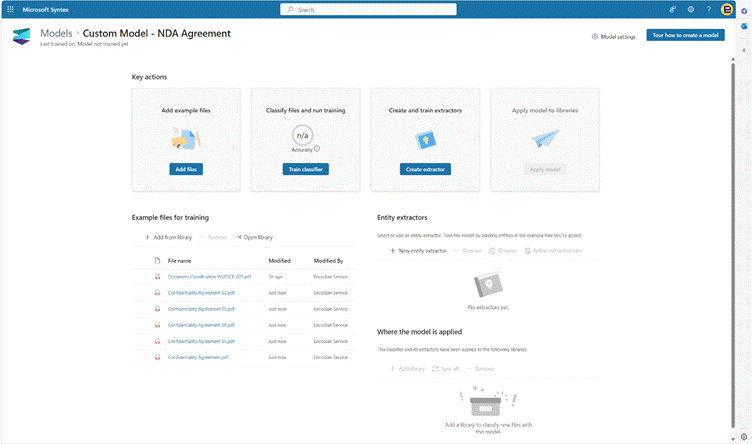
Image: Custom Model interface within a Content Centre.
Further, detailed information on Unstructured Document Classification can be found in Chapter X.
Premium Document Functionality
SharePoint Premium, as you can image by now, is a product with many different features within.
To enhance the users experience and functionality with their Document and Records Management requirements; SharePoint Premium contains many features that enable the ability to manipulate a document, such as:
- Image Tagging
- Annotations
- Redactions,
- Merge / Extract PDFs
- Optical Character Recognition (OCR)
- Column Autofill
- Processing Rules
- PII Detection
- Document Translation
- eSignature.
The following sections provide an overview of each of these features, with the following chapters going into the depths of each one.
Content Experiences
Image Tagging
The SharePoint Premium Image Tagging service utilizes AL and ML technologies to improve document management and collaboration. This capability automatically analyzes a document on upload and tags it with key information about the image, making it more searchable and accessible from SharePoint search.
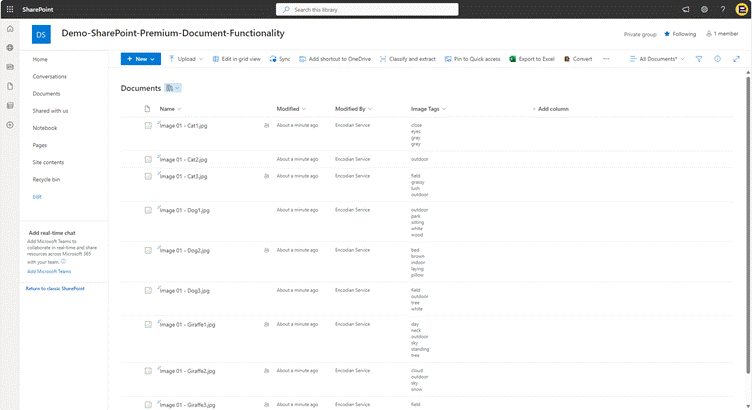
Image: SharePoint document library with Image Tagging enabled.
By identifying objects, text, and other visual elements in photos, SharePoint Premium Image Tagging allows users to quickly locate relevant content without the need for manual tagging.
This feature greatly enhances productivity and efficiency by simplifying the organization and retrieval of visual assets, allowing teams to concentrate on strategic tasks while ensuring valuable information is readily available.
Annotations
SharePoint Premium expands SharePoint’s core document preview capabilities by introducing Annotation capabilities to .ai, .dwg, .epub, .pdf, .rtf, and .tiff files.
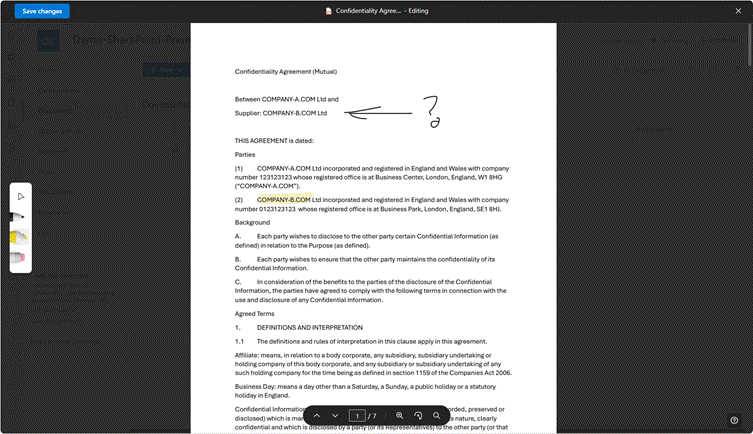
Image: SharePoint document library, with a PDF in document preview mode, with Annotations enabled.
This feature enables users to add comments, highlight, and various markers directly onto documents, turning SharePoint from a basic document repository into a dynamic workspace, enabling more effective team interactions with their content.
Merge and Extract PDFs
With the SharePoint Premium Merge and Extract PDFs feature, users can combine multiple PDF documents into a single file or extract specific pages or sections from a larger PDF and create a new, file.
This functionality is particularly useful for organizations that regularly deal with extensive reports, legal documents, or any other multi-page PDF files.
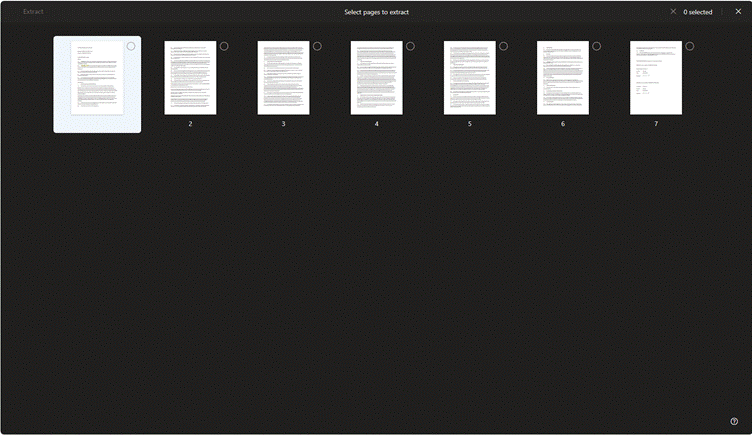
Image: SharePoint document library, with a PDF in extract mode.
The extract function in SharePoint Premium enables users to pull out specific pages or sections from a larger PDF document. This is particularly useful for extracting relevant information without needing to manage the entire document (or where a user may not necessarily have the desktop application to do so).
For instance, legal professionals can extract particular case files from a comprehensive report, or project managers can share only the pertinent sections of a project plan with their teams. The extracted pages can be saved as new PDF files or incorporated into other documents as needed.
The merge function allows users to consolidate multiple PDFs into a single document effortlessly. This is beneficial for creating comprehensive reports, compiling documents for a project, or simply reducing the number of individual files.
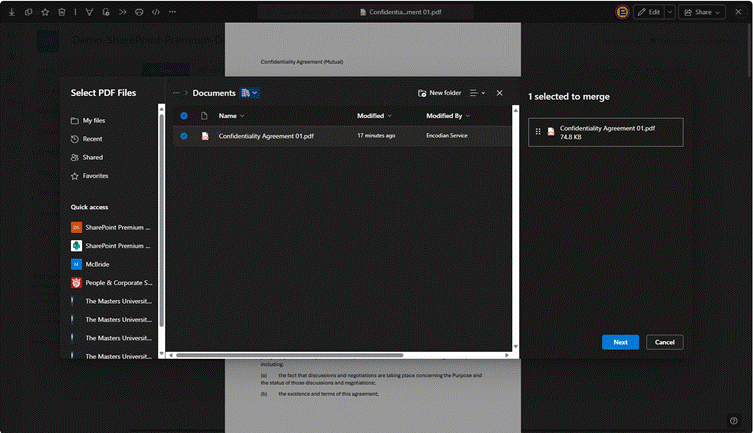
Image: SharePoint document library, with a PDF in merge mode.
Users can select the order in which the PDFs are merged, ensuring that the final document meets their specific requirements.
Optical Character Recognition (OCR)
SharePoint Premium offers the ability to apply Optical Character Recognition (OCR) content processing capabilities to documents. This significantly enhances document management and information retrieval capabilities within an organization.
Quite often, content inside documents uploaded to SharePoint are not indexable or retrievable because the content doesn’t contain a digital text layer. OCR technology in SharePoint Premium enables users to convert different types of documents, such as scanned paper documents, PDFs, and images captured by digital cameras, into editable and searchable data.
The OCR service in SharePoint Premium enables you to extract both printed and handwritten text from images and documents.
Redaction
The SharePoint Premium Redaction feature addresses the need to offer document redaction capabilities for where sensitive data needs to be obscured or removed from documents stored within SharePoint libraries. Typically, this includes sensitive information, such as names, addresses, social security numbers.
(DOCUMENT REDACTION IS NOT YET AVAILABLE – ITS DUE ANY DAY. I DON’T HAVE AN IMAGE)
Autofill
The Autofill feature within SharePoint Premium allows you to use AI to automatically populate a library column, for each given document, based upon a pre-defined prompt.
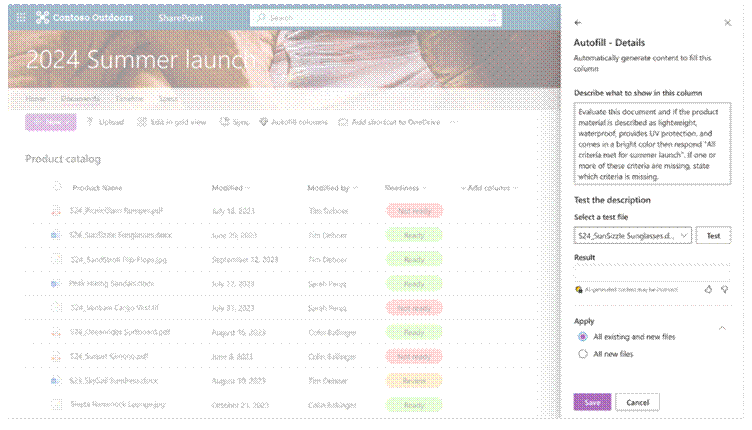
Document Processing
Processing Rules
SharePoint Premium lets you build rules-driven actions in document libraries based on metadata; these are referred to as Processing Rules, similar in concept to the Content Organizer Rules feature that was first introduced within SharePoint On-Premises.
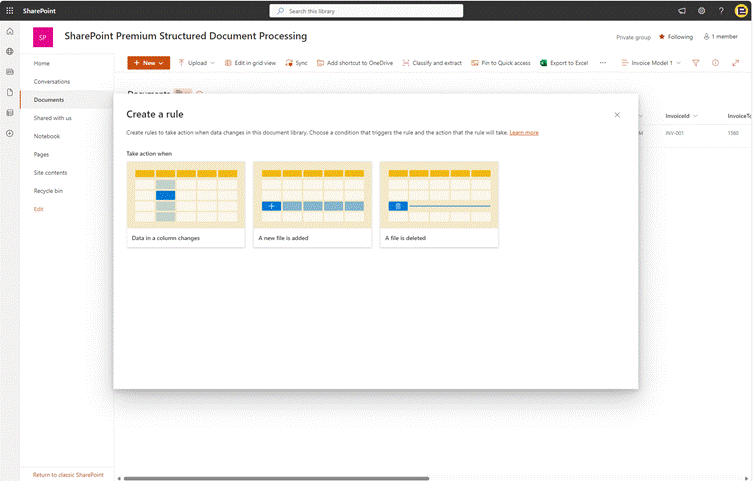
From a document library, you can create rules to automate tasks such as sending a notification when metadata changes in a file, when a new file is created in the library, or when files are moved or copied.
Typically, you would create Processing Rules to manage:
- Moving or copying a file from one location to another (typically when a file reaches the end of its lifecycle, you may then wish to move it to a records/archive location).
- Setting a Content Type based upon other metadata values that have been populated for that document.
Further, detailed information on Processing Rules can be found in Chapter X.
PII Detection
SharePoint Premium offers a means to automatically detect Personally Identifiable Information (PII) within content; essential for highly regulated organizations to maintain data privacy and compliance with regulations such as GDPR, HIPAA, and CCPA.
(PII DETECTION IS NOT YET AVAILABLE – ITS DUE ANY DAY. I DON’T HAVE AN IMAGE)
This feature leverages advanced machine learning algorithms and pattern recognition techniques to identify and flag sensitive information stored in documents, emails, lists, and other SharePoint content, such as social security numbers, credit card information, personal addresses, and phone numbers.
Further, detailed information on PII Detection can be found in Chapter X.
Content Query
The Content Query feature in SharePoint allows users to create customized queries to retrieve content based on specific criteria (from across all SharePoint Site Collections), including metadata columns and content types – something which is not possible to do so with the default SharePoint search interface.
This feature is particularly useful for organizations with vast amounts of data spread across various sites and libraries, as it allows users to efficiently locate and utilize information without the need for extensive manual searching.
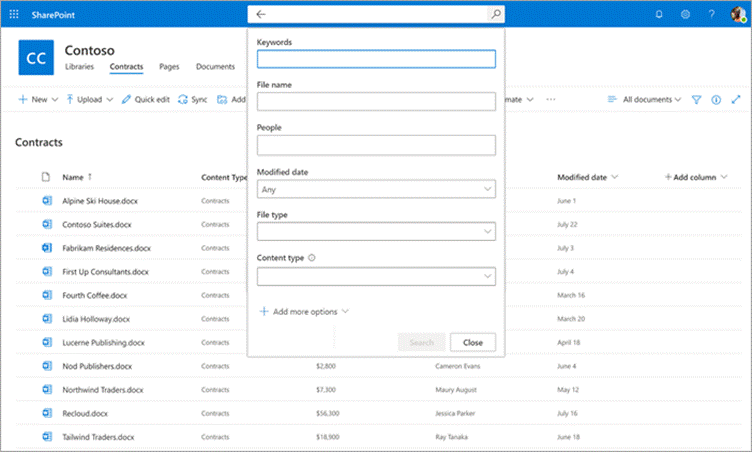
Image: SharePoint Content Query enabled on a Microsoft 365 tenant.
Further, detailed information on Content Query can be found in Chapter X.
Document Translation
SharePoint Premium’s Document Translation feature is designed to streamline and enhance the process of translating documents within a SharePoint environment. Historically this was only possible with manual conversion – which was typically initiated by a user enabling a Microsoft Flow that prompted an individual to manually translate the page/file.
This feature, enabled at the document library level, is particularly beneficial for multinational organizations that handle documents in various languages, enabling seamless communication and collaboration across different linguistic groups.

One of the document translation features is its ability to support multiple languages; users can translate documents into over 70 languages.
Further, detailed information on Document Translation can be found in Chapter X.
eSignature
The eSignature feature of SharePoint Premium enables the use of digital signatures (similar to Adobe Sign, Encodian eSign and DocuSign) for secure and efficient electronic signature workflows.
This feature is designed to ensure the integrity, authenticity, and non-repudiation of digital documents, making it an essential component for both highly regulated organizations that require rigorous compliance with legal and regulatory standards and those that need to meet internal compliance requirements.
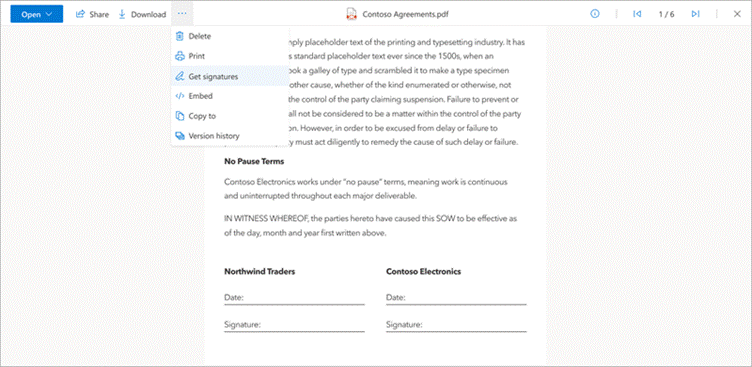
The Premium digital signature feature in SharePoint uses industry encryption techniques to provide a secure method for signing documents electronically ensuring that each signature is uniquely linked to the signer and cannot be altered or forged.
Further, detailed information on eSignature can be found in Chapter X.
Premium Taxonomy Features
SharePoint On-Premises and SharePoint Online both include a feature referred to as a ‘Content Type Hub’. A Content Type Hub enables an organization to publish content types across multiple Site Collections. Content Types are then consumed by individual Document Libraries – providing a consistent and scalable solution.
To ensure that important content types are consistently available across SharePoint libraries and lists, SharePoint Premium with its Premium Taxonomy Feature allows IT administrators to “push” Content Types to selected hubs. When you push a content type to a hub, it is automatically added to any new lists and libraries created on sites associated with that hub, as well as to any new sites added to the hub.
Once the settings are updated, the content type will be available in any newly associated site within minutes. The default library view will change to one of these automatically created views. If multiple content types are pushed to the same library, the latest one pushed will be set as the default view.
New lists or libraries created will have the content type automatically added within minutes of their creation. Note that a pushed content type will be added to a document library only if it derives directly or indirectly from the Document content type. Conversely, a content type will be added to a list only if it does not derive from the Document content type directly or indirectly.
 Aaron Rendell