
Advanced Content Security
As part of SharePoint Premium, with an add-on per-user license (vs. the remainder of the SharePoint Premium suite is Azure consumption based licensing), the advanced administration capabilities provide several additional controls and reports that enhances the ‘out of the box’ capabilities. These include:
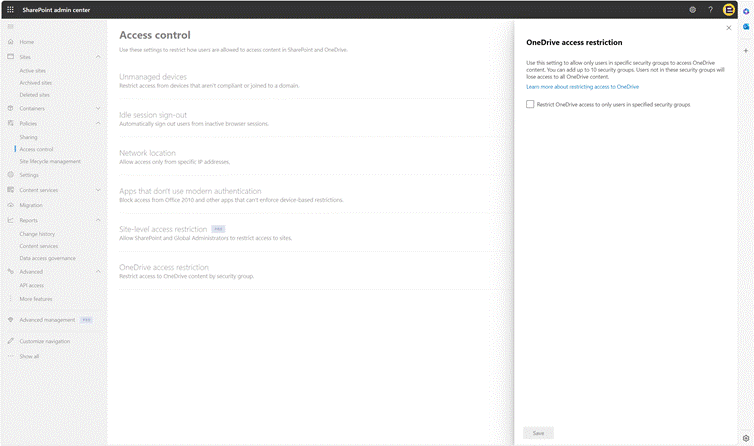
- Group Access Restriction – Access to a container and/or its content can be confined to members of a Microsoft 365 group or a security group. Individuals not included in these groups will be denied access to the site content, even if they previously had permissions or a file-sharing link. These containers include:
- SharePoint Sites
- OneDrive for Business.
- Data Access Governance Reports for SharePoint Sites – These reports identify sites with potentially overshared or sensitive content. These insights help in evaluating and implementing suitable security and compliance policies, and in more recent times, have been fundamental to organizations considering Microsoft Copilot.
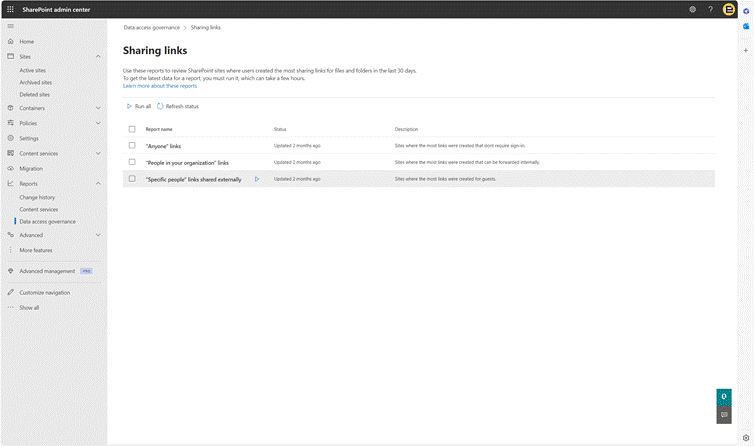
IMAGE: Data governance reports.
- Conditional Access Policy for SharePoint Sites and OneDrive – Uses Microsoft Entra authentication contexts to enforce stricter access conditions for SharePoint sites. These contexts can be applied directly to sites or used with sensitivity labels to link Microsoft Entra Conditional Access policies to labeled sites.
Polices are created and applied within the Microsoft Entra interface.

- Block Download Policy for SharePoint and OneDrive – Provides the option to block file downloads from SharePoint sites or OneDrive without using Microsoft Entra Conditional Access policies. Users will have browser-only access, preventing them from downloading, printing, or syncing files. Additionally, they won’t be able to access content through any apps, including the Microsoft Office desktop apps.
Policies are applied using PowerShell; there is currently no user interface available from within the Admin Centre.

- Review Recent Changes to SharePoint Site Properties – The recent actions panel allows you to review and monitor the last 30 changes you’ve made to a SharePoint site’s properties (such as renaming a site, deleting a site, or changing storage quota) within the past 30 days in the SharePoint admin center. This feature only displays changes made by you, not by other administrators, and does not show organization-level property changes.

- Manage Site Lifecycle Policies – Allows an admin to create an inactive site policy to automatically detect inactive sites and notify site owners via email. The owners can then confirm whether the site is still active.

- Create Change History Reports – In the SharePoint admin center, you can generate change history reports to review SharePoint site property changes made within the last 180 days. You can create up to five reports for a specific date range and filter them by sites and users. The reports can be downloaded as .csv files to view the site property changes.

Microsoft 365 Archive
Microsoft 365 Archive offers a cost-effective method for storing inactive SharePoint sites, catering to organizations that require long-term retention of dormant data. This ensures that the data remains readily available when necessary. Utilizing SharePoint for storing such data enhances its searchability, security, compliance, and overall management of the data lifecycle.
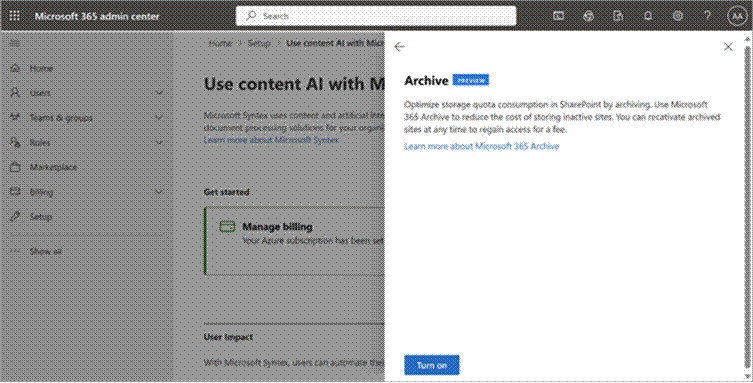
With Microsoft 365 Archive, inactive data is relocated to a lower-cost cold storage tier within SharePoint, whilst continuing to meet the same standards for searchability, security, and compliance.
When sites are archived, they are transferred to the cold storage tier. This transition frees up the quota for active storage and switches to using Microsoft 365 Archive storage. Access to archived sites is restricted within the organization and is only possible through Microsoft Purview or administrative searches.
Further, detailed information on Microsoft 365 Archive can be found in Chapter X.
Microsoft 365 Backup
Microsoft 365 Backup is a that provides a means to backup SharePoint, Exchange and OneDrive. Historically, backup of Microsoft 365 data has only been possible via the use of 3rd party tools.
Many organizations may question as to why they require backup technology, given the controls in place within Microsoft 365 already – however it does not cover all potential scenarios for data loss, such as accidental deletions, cyber-attacks, or administrative mistakes.
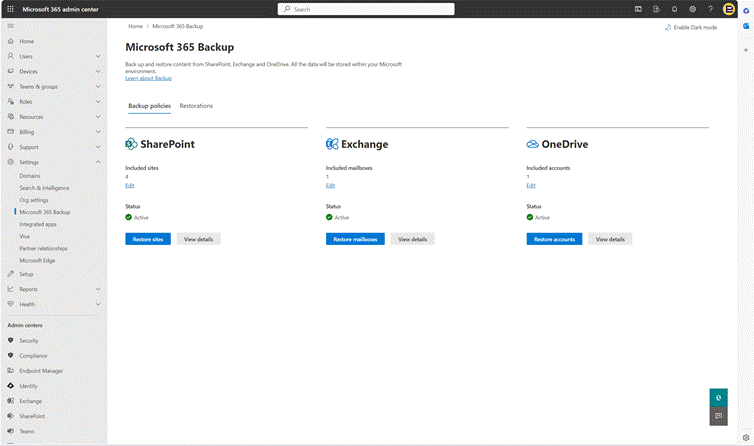
Backup policies for SharePoint, Exchange and OneDrive are created, each defining which content sources within each are backed up.
 Aaron Rendell