
This chapter guides you through the initial steps of activating SharePoint Premium services within your Microsoft 365 environment and how to enable each feature for use. This includes the detailed steps of completing the prerequisites within Microsoft Azure, followed by the configuration required for each feature within the Microsoft 365 admin center.
In this chapter you will learn how to:
- Create an Azure Subscription and Azure Resource Group to support SharePoint Premium.
- Associate your SharePoint Premium Azure subscription to Microsoft 365.
- Enable each SharePoint Premium feature.
- Enable each SharePoint Premium Advanced Management feature.
- Monitor your SharePoint Premium Usage.
You will also get an understanding of licensing costs associated with SharePoint Premium and Advanced Management.
Technical requirements[RK1] [AR2]
Prior to following the steps to enable SharePoint Premium, you must first have the following:
- A Microsoft 365 subscription with SharePoint Online[RK3] enabled
- The SharePoint Admin role from within Microsoft 365
- A Microsoft Azure subscription
- The Azure Owner permission on the subscription to create Azure Resource Groups.
Note
Enabling SharePoint Premium requires a user with Microsoft Azure and Microsoft 365 administrator privileges. In most cases, you will need to involve your IT department.
Pay-As-You-Go Licensing
SharePoint Premium usage is billed based on the type and number of transactions (consumption model). To enable this, an Azure subscription linked to your Microsoft 365 tenant is required to provide a ‘pay-as-you-go’ experience.
With pay-as-you-go, any user within an organization can use SharePoint Premium without any license commitment or upfront purchasing (assuming the user is already licensing for Microsoft 365) – all billing is managed on a consumption model basis.
Per-User Licensing
SharePoint Advanced Management features of SharePoint Premium are licensed per user.
The licenses are applied to the user from within the Microsoft 365 admin center.
Only licensed users can use and benefit from any Advanced Management features enabled.
Note
Prior to July 2023, it was possible to purchase per-user SharePoint Premium licensing. Per-user licenses are no longer available for purchase.
Per-user licenses purchased before July 1, 2023, can still be assigned to new users. After existing per-user licenses expire, the organization must opt into SharePoint Premium pay-as-you-go billing to continue using SharePoint Premium services.
Licensing SharePoint Premium
SharePoint Premium services operate on a pay-as-you-go model, utilizing an Azure subscription for billing and usage monitoring and a Per-User License.
The following sections provide an overview of each of these licensing models.
Configuring SharePoint Premium for Pay-As-You-Go
SharePoint Premium services are billed on a pay-as-you-go basis. These services use an Azure subscription for billing and tracking usage and cost.
To configure SharePoint Premium for the first time, the following key steps need to be completed:
- Creating an Azure Subscription
- Creating an Azure Resource Group
- Associating Microsoft 365 to an Azure Resource Group
- Enabling each SharePoint Premium Services
Let us dive into the preceding steps.
Step 1 – Creating an Azure Subscription
- Open a new tab in your web browser and go to the Azure Portal: www.portal.azure.com
- Log in using your Microsoft credentials.
- In the Azure portal, click on Subscriptions.
- Click on Add to create a new subscription.
- Provide a suitable Subscription Name.
- Select the Billing Account that you wish to associate the subscription to.
- Click Create. When your subscription has been successfully created, you will see a page similar to the following image.
- [AR4]

Figure 2.1 – Image showing the newly created Azure Subscription
Once the subscription is created, you can view and amend the subscription by clicking on the subscription name from the Azure Portal homepage.
Note
Your organization may require additional information or wish to setup cost management budgets and alerts when creating a new Azure subscription.
Step 2 – Creating a Resource Group
Following on from the creation of the Azure Subscription, the following steps are required to create an Azure Resource Group, which will be associated to your newly created Azure Subscription.
- Select Resource Groups from the navigation and click Create.
- Complete the information requested, including Selecting the Subscription and providing a suitable name for your resource group.
- Click Review + Create.
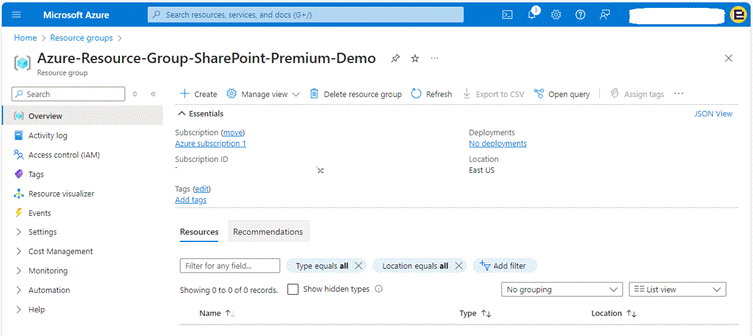
Figure 2.2 – Image showing the successfully created Azure Resource Group
We have now successfully created an Azure Resource Group, the next step required is to associate that with your Microsoft 365 tenant, from within the Microsoft 365 Admin Centre.
Step 3 – Associating Microsoft 365 to an Azure Subscription
The following steps are required to associate Microsoft 365 with the Azure Resource Group that will be responsible for managing the pay-as-you-go billing.
- Open a new tab in your web browser and go to the Microsoft 365 Portal: https://admin.microsoft.com/
- Select Setup from the left navigation and navigate down the page to view the Files and content section. The following image provides the page that you will have navigated to.

Figure 2.3 – Image showing the SharePoint Admin Centre, with the Microsoft 365 Setup page for SharePoint Premium option
- Click on Automate content processes with Syntex
- Click on Go to Syntex Settings
- On the Microsoft Syntex page, select Setup up pay-as-you-go billing
- Under section 2, select your Azure subscription from the dropdown menu.
- Choose a Resource group and Region.
- Read and accept the Microsoft Syntex pay-as-you-go terms of service.
- Click Save.

Figure 2.4 – The SharePoint Premium Azure association setup page
We have now successfully associated your Microsoft 365 tenant to your Azure subscription. This will now enable the configurable SharePoint Premium features from within the SharePoint Premium admin center.
Step 4 – Enabling SharePoint Premium Features within Microsoft 365
Each SharePoint Premium service must be enabled and configured separately, which is managed from the SharePoint Premium admin center.
The following sub-steps provide an overview of how to enable each of the different SharePoint Premium services.
Step 4.1 – Prebuilt Document Processing
The Prebuilt Document Processing feature allows users to configure pre-trained models to extract info from common documents like contracts, invoices, and receipts.
The benefit of using a prebuilt is that the model has already been trained and unlike the custom models, doesn’t require an organization to have to train its data prior to use.
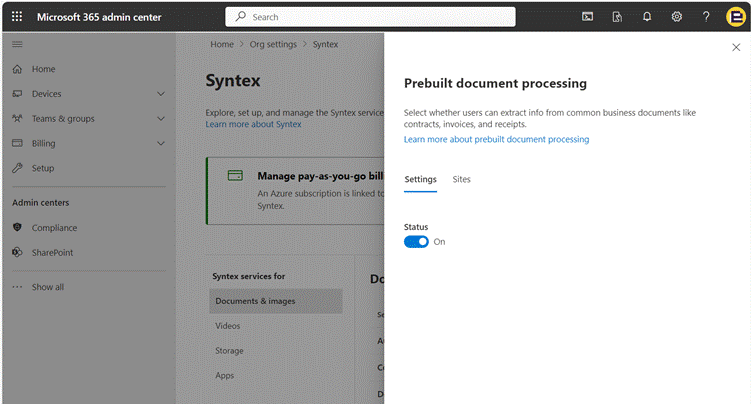
Figure 2.5 – The SharePoint Premium prebuilt document processing enablement page
The configuration options available for the prebuilt document processing model are outlined in the following table:
| Setting | Configuration Options |
| Status | On/Off |
| Sites where models can be created | All sites Selected sites (up to 100) No sites |
| Default Content Center Name | [Specify Name] |
| Default Content Center URL | [Specify SharePoint URL] |
Table 2.1 – The configuration options available for the prebuilt document processing feature
Following the completion of the steps above, and specifying any specific configuration requirements within the settings, the prebuild document processing model can now be used. Please refer to chapter 4, for a deep dive on how to use this feature.
Step 4.2 – Structured and Freeform Document Processing
The Structured and Freeform Document Processing feature enables users to train custom models to extract content from structured documents such as forms and freeform documents such as letters and contracts.
Users can create and set up models in SharePoint document libraries to extract content from documents added to the library. This feature uses the AI Builder capabilities found within the Microsoft Power Platform, and therefore as part of the configuration process you will be asked to specify a Power Platform environment.

Figure 2.6 – The SharePoint Premium structured and freeform document processing enablement page
The configuration options available for the structured and freeform document processing model are outlined in the following table:
| Setting | Configuration Options |
| Status | On/Off |
| Power Platform Environment | Use the default environment Use a custom environment |
| Model Creation | All sites Selected sites (up to 100) No sites |
Table 2.2 – The configuration options available for the structured and freeform document processing feature
Following the completion of the steps above, and specifying any specific configuration requirements within the settings, the structured and freeform document processing model can now be used. Please refer to Chapter 4[AR5] , for a deep dive on how to use this feature.
Step 4.3 – Unstructured Document Processing
The Unstructured Document Processing capability within SharePoint Premium enables users to classify and extract info from unstructured documents, such as letters or contracts, based on phrases or patterns.

Figure 2.7 – The SharePoint Premium Unstructured document processing enablement page
The configuration options available for the Unstructured document processing model are outlined in the following table:
| Setting | Configuration Options |
| Status | On/Off |
| Sites where models can be created | All sites Selected sites (up to 100) No sites |
| Default Content Center Name | [Specify Name] |
| Default Content Center URL | [Specify SharePoint URL] |
Table 2.3 – The configuration options available for the Unstructured document processing feature
Following the completion of the steps above, and specifying any specific configuration requirements within the settings, the unstructured document processing model can now be used. Please refer to Chapter 5[AR6] , for a deep dive on how to use this feature.
Step 4.4 – Autofill Columns
The SharePoint Premium Autofill Columns feature enables users to define an AI prompt, which is then used to populate a SharePoint document library column with the output.
AI uses the content of the document to generate its response from. This can be particularly helpful when looking to have a summary of a document or where you are looking to extract certain information from a document.

The configuration options available for the Autofill Columns feature are outlined in the following table:
| Setting | Configuration Options |
| Status | On/Off |
| Sites where Autofill can be used when its turned on | • All sites • Selected sites (up to 100) • No sites |
Table 2.4 – The configuration options available for the Autofill Columns feature
Following the completion of the preceding steps, and specifying any specific configuration requirements within the settings, autofill columns can now be used. Please refer to Chapter 6[RK7] , for a deep dive on how to use this feature.
Step 4.5 – Content Assembly
The Content Assembly feature enables a user to create templates and automate the generation of standard business documents, such as contracts, statements of work, service agreements, letters of consent, sales pitches, and correspondence.
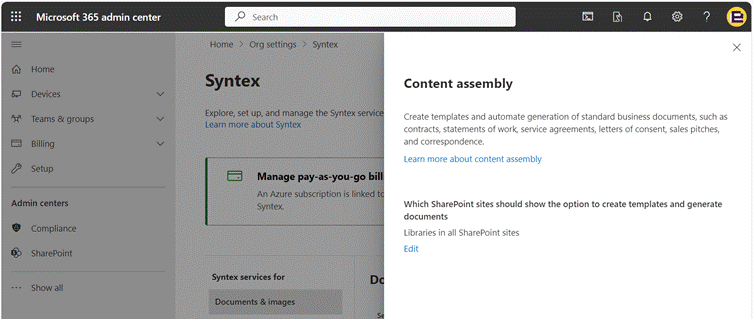
Figure 2.9 – The SharePoint Premium content assembly enablement page
The configuration options available for the Content assembly feature are outlined in the following table:
| Setting | Configuration Options |
| Status | Enabled by default (no ability to turn off). |
| Which SharePoint sites should show the option to create templates and generate documents | Libraries in all SharePoint sites No libraries |
Table 2.5 – The configuration options available for the content assembly feature
Following the completion of the steps above, and specifying any specific configuration requirements within the settings, the content assembly feature can now be used. Please refer to Chapter 3[AR8] , for a deep dive on how to use this feature.
Step 4.6 – Document Translation
The Document Translation feature enables users to create translated copies of a document from within a SharePoint document library. The process ensures that the original layout and format of the document remains the same as much as possible.
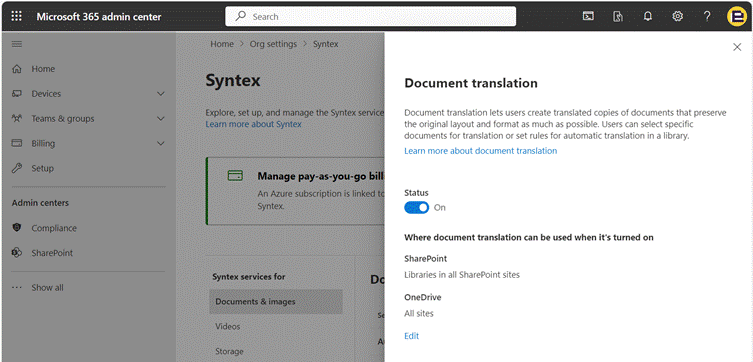
Figure 2.10 – The SharePoint Premium Document translation enablement page
The configuration options available for the document translation feature are outlined in the following table:
| Setting | Configuration Options |
| Status | On/Off |
| Where document translation can be used in SharePoint | All sites Selected sites (up to 100) No sites |
| Can document translation can be used in OneDrive | Yes/No |
Table 2.7 – The configuration options available for the document translation feature
Following the completion of the steps above, and specifying any specific configuration requirements within the settings, the document translation feature can now be used. Please refer to Chapter 8[AR9] , for a deep dive on how to use this feature.
Step 4.7 – eSignature
SharePoint Premium eSignature enables users to create digital signature requests for PDF documents, enabling internal and external stakeholders to digitally sign a document.
This functionality integrates directly into a SharePoint document library.
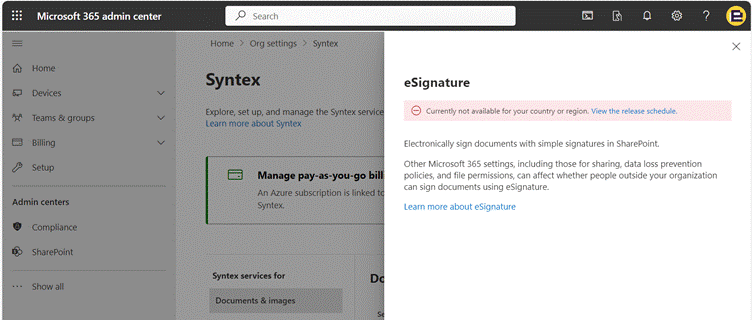
Figure 2.11 – The SharePoint Premium prebuilt document processing enablement page
Note
eSignature is currently only enabled for US tenants. All other tenants are scheduled for 2025 onwards. If your tenant is outside the US, you will receive a similar message as per Figure 2.11.
The configuration options available for the eSignature feature are outlined in the following table:
| Setting | Configuration Options |
| Status | On/Off |
| Which sites should be enabled for eSignature | All sites Selected sites (up to 100) No sites |
Table 2.8 – The configuration options available for the eSignature feature
Following the completion of the steps above, and specifying any specific configuration requirements within the settings, eSignature can now be used. Please refer to Chapter 9[AR10] , for a deep dive on how to use this feature.
Step 4.8 – Image Tagging
Image Tagging enables users to categorize and label images with descriptive keywords, using AI, automatically.
When enabled to a SharePoint Site Collection, an additional column is added to the library which is used to store the AI generated response. As the response is added directly to the SharePoint item, the metadata can be used within search for improved relevancy results.
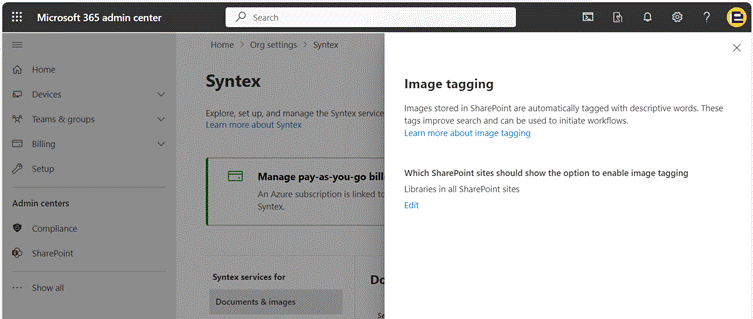
Figure 2.12 – The SharePoint Premium Image tagging enablement page
The configuration options available for the Image tagging feature are outlined in the following table:
| Setting | Configuration Options |
| Status | Enabled by default (no ability to turn off). |
| Which SharePoint sites should show the option to enable image tagging | • Libraries in all SharePoint sites • Selected sites (up to 100) • No sites |
Table 2.9 – The configuration options available for the Image tagging feature
Following the completion of the steps above, and specifying any specific configuration requirements within the settings, the image tagging feature can now be used. Please refer to Chapter 6, [RK11] [AR12] for a deep dive on how to use this feature.
Step 4.9 – Optical Character Recognition
To enhance search capabilities and AI indexing, SharePoint Premium can programmatically create a digital text layer over an existing document, using Optical Character Recognition (OCR) capabilities.
This feature not only improves indexing and AI retrieval but enables users to extract text from images and image-based documents.
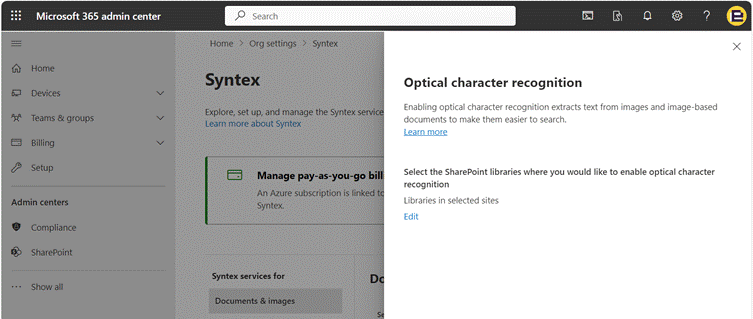
Figure 2.13 – The SharePoint Premium Optical character recognition enablement page
The configuration options available for the Optical character recognition (OCR) feature are outlined in the following table:
| Setting | Configuration Options |
| Status | Enabled by default (no ability to turn off). |
| Select the SharePoint libraries where you would like to enable optical character recognition | Libraries in all SharePoint sites Selected sites (up to 100) – bulk upload via CSV available. No sites |
Table 2.10 – The configuration options available for the Optical character recognition feature.
Following the completion of the steps above, and specifying any specific configuration requirements within the settings, the OCR features can now be used. Please refer to Chapter 6[RK13] [AR14] , for a deep dive on how to use this feature.
Step 4.10 – Taxonomy Tagging
The SharePoint Premium feature, Taxonomy Tagging, enables a user to automatically extract key phrases from within the context of the document, match them with terms in your term store, and add the terms to managed metadata columns in the library.
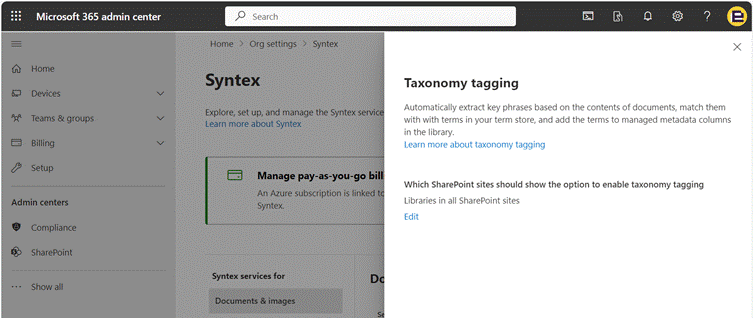
Figure 2.14 – The SharePoint Premium Taxonomy tagging enablement page
The configuration options available for the Taxonomy tagging feature are outlined in the following table:
| Setting | Configuration Options |
| Status | Enabled by default (no ability to turn off). |
| Which SharePoint sites should show the option to enable taxonomy tagging | Libraries in all SharePoint sites Selected sites (up to 100) No sites |
Table 2.11 – The configuration options available for the Taxonomy tagging feature.
Following the completion of the steps above, and specifying any specific configuration requirements within the settings, the Taxonomy tagging feature can now be used. Please refer to Chapter 10[AR15] , for a deep dive on how to use this feature.
Step 4.11 – Video Translations
The Video Translation transcript feature allows video editors to generate translated versions of the video’s transcript.
This feature is particularly useful for multilingual organizations enabling coworkers to easily view and understand in their primary language. The Video translation transcript feature is available to over 100 supported languages.

Figure 2.15 – The SharePoint Premium prebuilt document processing enablement page
The configuration options available for the Video translations feature are outlined in the following table:
| Setting | Configuration Options |
| Status | On/Off |
Table 2.12 – The configuration options available for the Video translations feature.
Following the completion of the steps above, and specifying any specific configuration requirements within the settings, the Video translation feature can now be used. Please refer to Chapter 6[AR16] , for a deep dive on how to use this feature.
Step 4.12 – Microsoft 365 Archive
Microsoft 365 Archive allows an organization to reduce the cost of storing inactive sites by archiving the site for cheaper storage.
Inactive sites remain within Microsoft 365 (but within a cheaper tier of storage). As the Sites remaining in Microsoft 365 it offers the same searchability, security, and compliance standards applied as though it wasn’t in archive storage.

Figure 2.16 – The Microsoft 365 Archive enablement page
The configuration options available for Microsoft 365 Archive are outlined in the following table:
| Setting | Configuration Options |
| Status | On/Off |
Table 2.13 – The configuration options available for Microsoft 365 Archive
Following the completion of the steps above, and specifying any specific configuration requirements within the settings, Microsoft 365 Archive can now be used. Please refer to Chapter 13[AR17] , for a deep dive on how to use this feature.
Step 4.13 – Microsoft 365 Backup
Microsoft 365 Backup enables an organization to create backup policies for your Microsoft 365 content, including SharePoint, OneDrive, and Exchange.

Figure 2.17 – The Microsoft 365 Backup enablement page
The configuration options available for Microsoft 365 Backup are outlined in the following table:
| Setting | Configuration Options |
| Status | On/Off |
Table 2.14 – The configuration options available for Microsoft 365 Backup
Following the completion of the steps above, and specifying any specific configuration requirements within the settings, Microsoft 365 Backup can now be used. Please refer to Chapter 14[AR18] , for a deep dive on how to use this feature.[RK19] [AR20]
We have now successfully outlined how to enable each SharePoint Premium feature; the next section outlines the pricing models for each of these features.
The services provided by SharePoint Premium are each charged on a consumption pay-as-you-go model. The cost of each feature differs.
You can refer to the following page on the Microsoft website that provides an overview of the costs of each SharePoint Premium feature (as of Summer 2024): https://learn.microsoft.com/en-us/microsoft-365/syntex/syntex-pay-as-you-go-services. [RK21] [AR22]
Monitor SharePoint Premium Usage
You can monitor your Microsoft SharePoint Premium usage in Azure, under the Resource Group used by Microsoft 365 (as per Step 2, when configuring SharePoint Premium).
To view your usage, you must have at least read access to the resource group that you specified for SharePoint Premium. Follow these steps:
- Open a new tab in your web browser and go to the Azure Portal: www.portal.azure.com
- Log in using your Microsoft credentials.
- Click Resource Groups from the navigation and select the resource group you associated to SharePoint Premium in Step 3.
- Under Cost Management, select Cost analysis.
- To view the SharePoint Premium related costs, filter Cost by resource from the navigation, and select Services. Expand Syntex. The following image shows the Resource Group, with the ‘Syntex’ related services shown.

Figure 2.18 – The Cost analysis page, with Microsoft Azure, for the SharePoint Premium resource group
[RK24] We have now successfully outlined how to view the usage of SharePoint Premium from your Azure subscription. In the next section we look at the Advanced Management features of SharePoint, which not only add more features but are also administered and billed differently.
SharePoint Advanced Management
Some of the functionality outlined as part of SharePoint Premium, including the Advanced Content Security and Reporting features are enabled on a per-user license basis; these features are excluded from the Azure pay-as-you-go consumption billing model.
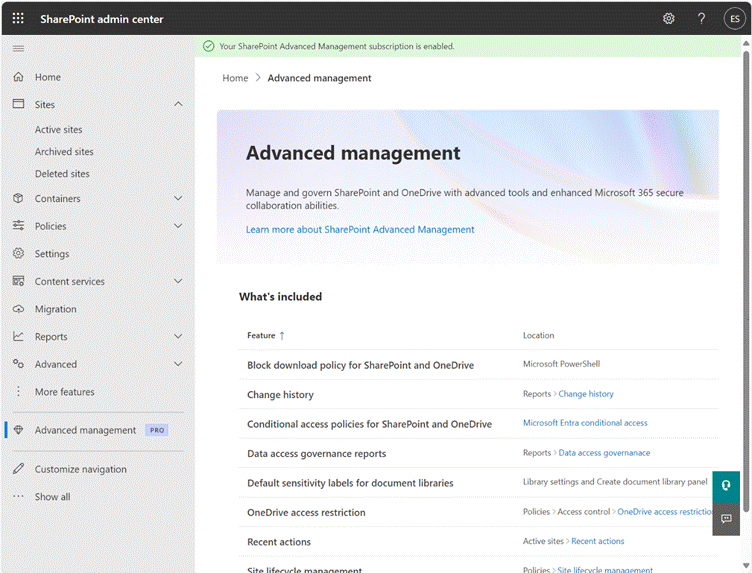
Figure 2.19- Showing the Advanced management page within the SharePoint Admin Centre site.
To use SharePoint Advanced Management, each user who wishes to use these features must have a SharePoint Advanced Management Plan 1 add-on license in addition to their Microsoft 365 license.
Configuration of each SharePoint Advanced Management feature is outlined in deeper detail in Chapters 11 and 12.
Summary
In this chapter we have discussed and outlined the licensing requirements and administrative setup required to enable SharePoint Premium within an organization.
This includes the Azure Subscription and Azure Resource Group creation, followed by the association of Microsoft 365 to the Azure Resource Group. Both these elements are key to enabling SharePoint Premium functionality.
In the following chapters, we will go through each of the SharePoint Premium features in detail, providing further insights into the configuration of each feature and the use cases.
[RK1]In Packt books, this is usually the first heading right after the introduction. Should we move it there? Packt readers are used to that format.
[AR2]Have moved up.
[RK3]‘with SharePoint Online enabled’?
[AR4]I have added this image, using GIMP.
The original PNG looks clear; however when added to Word, it doesn’t look any crisper than the previous image.
Can you confirm if this is any better before I update the remainder?
[AR5]Correct new chapter number.
[AR6]Correct.
[RK7]Kindly recheck the chapter numbers since they have changed after we clubbed chapters 1 and 2
[AR8]Correct.
[AR9]Correct.
[AR10]Correct.
[RK11]Above, we said Autofill Columns will be covered in Chapter 7. Kndly check.
[AR12]Updated.
[RK13]Check and confirm
[AR14]Updated.
[AR15]Correct.
[AR16]correct
[AR17]Correct.
[AR18]Correct.
[RK19]We’ve moving from a new topic to a different main heading. Kindly add a proper signpost for this.
[AR20]Added.
[RK21]Since this is like a side-note, let’s add it in a callout box instead of dedicating a separate section for it. What do you think?
[AR22]I shall take your guidance; but would that not feel like it only applies to 4.13 vs. all within Step 4?
[RK23]I’m afraid the text in this screenshot is unreadable too and its not clear what is to be seen in the screenshot.
[RK24]Signpost please
 Aaron Rendell