
The introduction of the SharePoint Premium Document Translation feature marks a significant milestone for document classification and extraction requirements. For a multi-lingual / global organization, the ability to communicate effectively and consistently across languages is essential to ensure inclusiveness and to remain productive.
The service provides automated translation capabilities for various types of documents, including text, Office documents, PDFs, and more. This service utilizes advanced machine learning and natural language processing algorithms to accurately translate content between different languages.
SharePoint, as a robust content management and collaboration platform, offers capabilities that streamline document translation, thereby enhancing communication, compliance, and operational efficiency. Document translation within SharePoint and its integration into daily business processes is not just a convenience but a strategic necessity for organizations operating in diverse linguistic regions.
This chapter will provide an understanding of the transformative capabilities of this advanced feature, exploring how it seamlessly integrates with Microsoft SharePoint to offer efficiency and accessibility in document management for multi-lingual organizations.
Overview
For many organizations, SharePoint provides a centralized location for storing and managing documents and with its integration capabilities can automate translation workflows, reducing the time and effort required to translate documents manually.
For multinational companies, SharePoint facilitates seamless collaboration among teams across different regions. Employees can access and collaborate on documents in their preferred language, enhancing productivity and reducing miscommunication.
By integrating translation services directly within SharePoint, organizations can reduce the costs associated with hiring external translation agencies and minimize the delays caused by manual translation processes.
Some typical examples of uses across several different industries, include:
- Pharmaceutical Industry – regulatory bodies like the FDA require that all patient-facing materials, including drug labels, instruction leaflets, and consent forms, are available in the local languages of the regions where the products are marketed. SharePoint’s translation features allow pharmaceutical companies to automate the translation of these critical documents, ensuring compliance and reducing the risk of errors.
- Manufacturing – manufacturers often need to translate technical documents such as user manuals, safety instructions, and compliance reports into multiple languages. SharePoint’s translation tools help streamline this process, ensuring that all documentation is consistent and accurate across different regions, which is essential for maintaining operational safety and meeting legal requirements.
- Legal Services – operating in multiple jurisdictions often necessitates the need to translate contracts, legal opinions, and court documents. SharePoint can help automate the translation of these documents, ensuring that legal professionals can work with accurate and timely translations, thus speeding up legal proceedings and ensuring compliance with local laws.
- Retail and E-commerce – companies frequently need to translate product descriptions, marketing content, and customer service communications to serve a global customer base. SharePoint’s translation capabilities enable these businesses to quickly and efficiently manage multilingual content, thereby enhancing customer experience and expanding their market reach.
Setup and Configuration
Microsoft SharePoint Premium allows you to easily create a translated copy of a selected file or a set of files from within a SharePoint document library and from within OneDrive for Business.
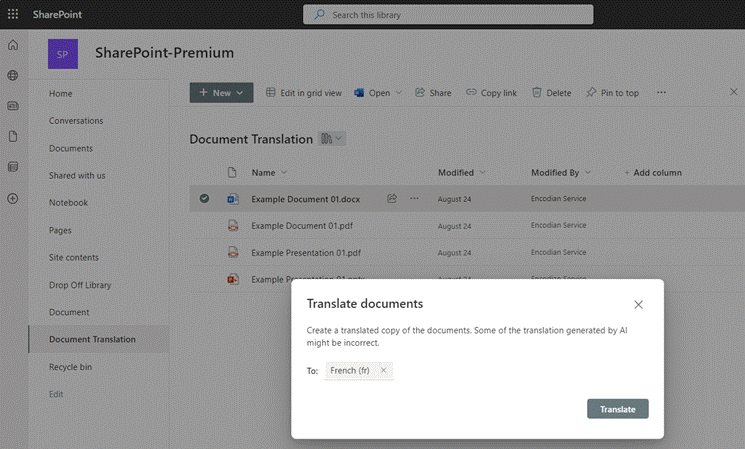
Figure 8.1 – A SharePoint Document library enabled for Document Translation
Documents can be translated via several methods, including:
- Manually – via a SharePoint Document Library.
- Automatically – using SharePoint Content Processing rules.
Enabling Document translation
The Document Translation service for Microsoft SharePoint Premium is configured from within the Microsoft 365 admin center. You may require an Office 365 Tenant Administrator to assist with these steps.
Note
Please refer to Chapter 2 for the pre-requisites required to enable SharePoint Premium in your tenant, prior to configuring the Document Translation feature.
To configure the Document Translation feature, the following steps need to be completed.
- From the Microsoft 365 admin center, select Setup, and then select Use content AI with Microsoft Syntex.
- On the Use content AI with Microsoft Syntex page, select Manage Microsoft Syntex.
- On the Microsoft Syntex panel, select Documents & Images > Document translation.
- From the ‘Document Translation’ panel, change status to ‘On’.
- Choose which site or sites this service should be enabled for by clicking Edit. The options presented include:
- SharePoint – ‘All Sites’, ‘Selected Sites (up to 100), ‘No Sites’.
- OneDrive – ‘Available in OneDrive (Yes / No)’.
- Click Save.
Note:
By default, the Document Translation service is turned on for all libraries in all SharePoint sites. Whilst this appears to be the simplest configuration option and enables consistently across the organization, each document translated incurs a cost which should be taken into account.
Enabling Video Transcription translation
Video Transcript translations enables a user to generate a translated version of a video recording transcript (providing it has been uploaded to Microsoft Stream).
To configure the Video Transcription Translation feature, the following steps need to be carried out.
- From the Microsoft 365 admin center, select Setup, and then select Use content AI with Microsoft Syntex.
- On the Use content AI with Microsoft Syntex page, select Manage Microsoft Syntex.
- On the Microsoft Syntex panel, select Videos > Videos.
- From the ‘Video’ panel, change status to ‘On’.
- Unlike the Document Translation feature, the Video Transcription feature is either on or off for all (you can’t specify which Sites are enabled).
- Click Save.
Note:
By default, the Video Transcription Translation service is turned on for all libraries in all SharePoint sites. Whilst this is the easiest configuration option and enables the functionality consistently across the organization, each translation incurs a cost which should be taken into account.
Document Translation
SharePoint Premium Document Translation allows you to generate a translated version of a file either manually (directly from within the SharePoint Library) or automatically (using the ‘Content Processing’ feature).
The following sections provide an overview of each of these scenarios.
Translate a document on demand
To create a translated version of a document from a SharePoint document library, follow these steps:
From a SharePoint document library, select the File (or Files) you want to translate.
- Select Translate from either the document menu or from the document library menu.
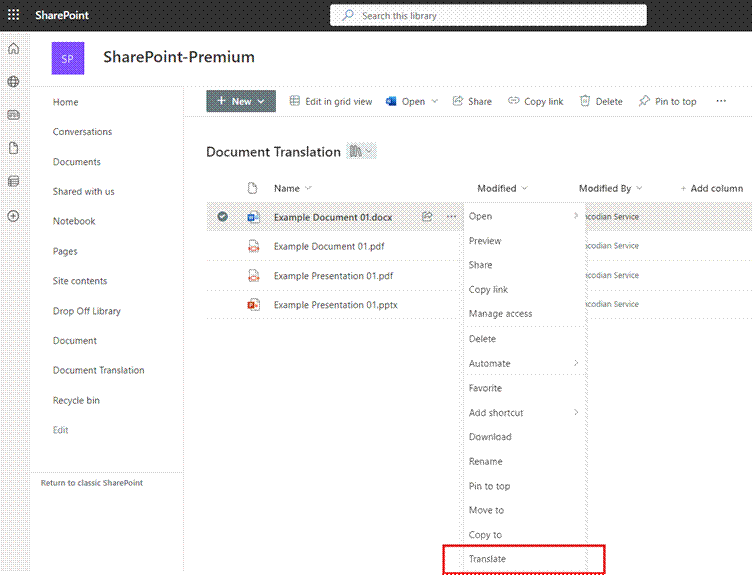
Figure 8.2 – SharePoint document library highlighting the ‘Translate’ option from the menu for a selected document.
- The Translate documents modal dialog prompt shows and asks the user to specify a language. Select the language you wish to translate the document to.
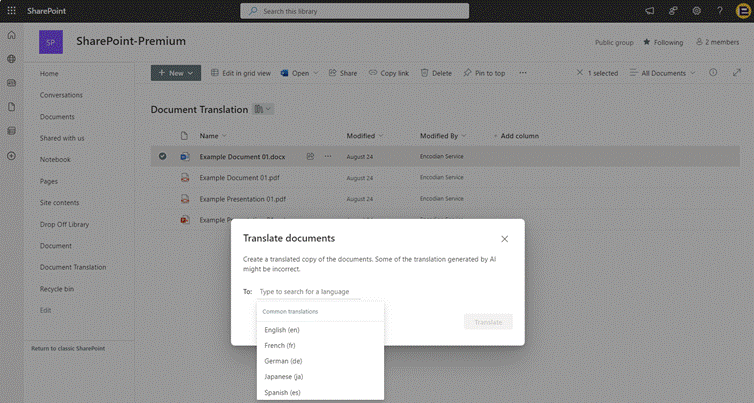
Figure 8.3 – Showing the Document Translation language selection dialog prompt.
- After choosing the language you wish to use to translate a file to, click Translate.
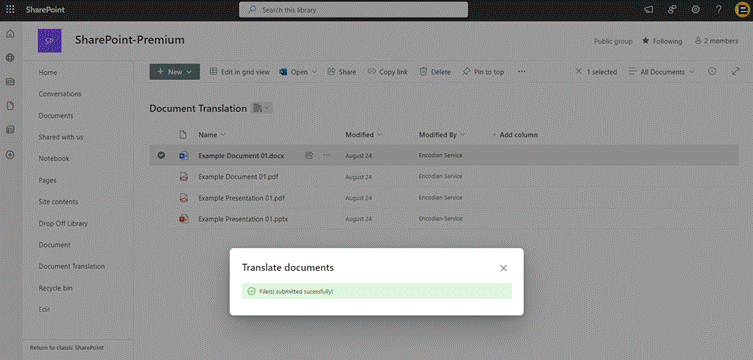
Figure 8.4 – Confirming dialog box after submitting a document for translation
The translated file may take a few minutes to generate. Once ready, it will show up in the document library.
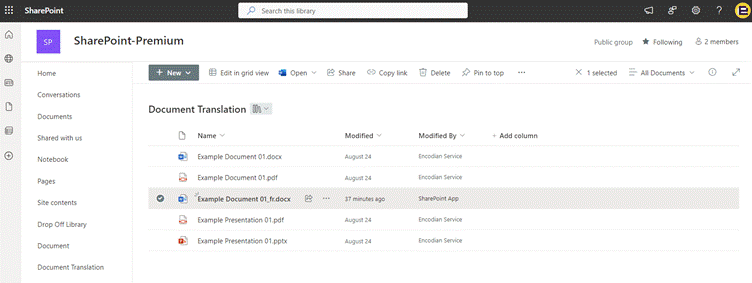
Figure 8.5 – Showing the selected document translated from English to French
Translate a document automatically
In addition to translating documents manually, you can create a rule to automatically translate a document using the SharePoint Premium Processing Rules feature when:
- A new file is added.
- Data in a column changes.
- The following sections provide an overview of each of these scenarios.
When a new file is added
To create a rule to translate documents automatically when a document is created:
- From a SharePoint document library, select Automate > Rules > Create a rule.
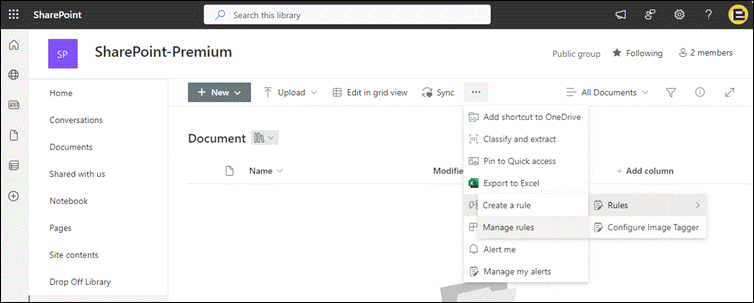
Figure 8.6 – Image showing how to access the Processing Rules ‘Manage rules’ interface
- On the create a rule page, select A new file is added.

Figure 8.7 – Image showing the Create a rule trigger dialog.
Select Choose action, and then create a translated copy in. From the ‘Type to search for a language’ select the language you wish to translate the document to.

Figure 8.8 – Content Processing rule creation dialog showing the select a language option.
- Click Create to create the rule. Once the rule has been created, you will be redirected to the ‘Manage rules’ page.
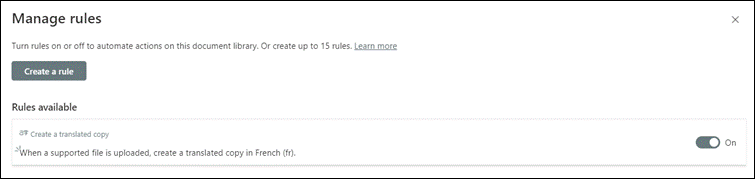
Figure 8.9 – Confirmation of the Content Processing rule has been created.
When data in a column changes
Automating the translation of a document when a column value changes can be useful in an automation scenario (i.e. you have a Power Automate workflow that requires the translation of a document as part of a business process).
To create a rule to translate documents automatically when data in a column changes, follow these steps:
- From a SharePoint document library, select Automate > Rules > Create a rule.

Figure 8.10 – Image showing how to access the Processing Rules ‘Manage rules’ interface
- On the Create a rule page, select Data in a column changes
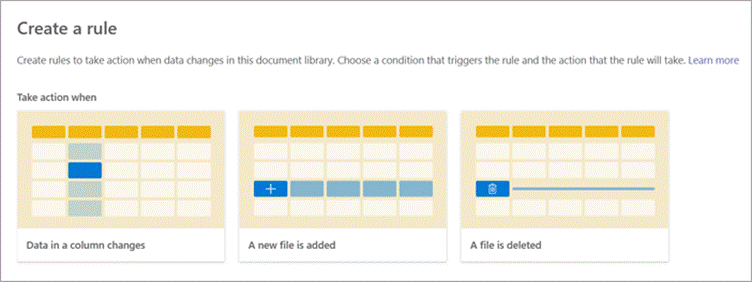
Figure 8.11 – Image showing the Create a rule trigger dialog.
- From the drop-down menu option select Choose a column, and then select the appropriate column for the SharePoint library.
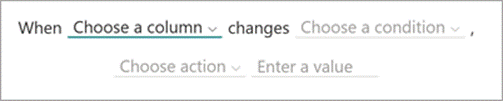
Figure 8.12 – Image showing the parameters required for the trigger.
- Select Choose a condition, and then select the appropriate condition under which to translate the file.
- Select Choose action, and then select create a translated copy in.
- Select enter a language, and then select the language into which you want to translate the file to.
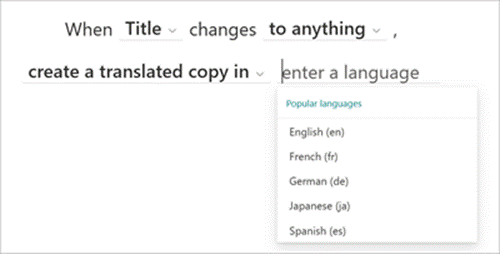
Figure 8.13 –
- Click Create to create the rule. Once the rule has been created, you will be redirected to the ‘Manage rules’ page.

Figure 8.14 – Confirmation of the Content Processing rule has been created.
Video Transcript Translation
Microsoft Stream offers built-in features for translating transcriptions and captions when using Microsoft SharePoint Premium; providing an economical pay-as-you-go solution for translating video transcripts.
The Video Transcript Translation feature allows users to translate video transcripts and closed captions into 1 of the 100+ languages available within the SharePoint Premium Translation services.
Once translated, viewers can choose the translated transcripts and captions while watching the videos.
Translate transcripts in Stream for SharePoint
- First, navigate to Microsoft Stream https://www.microsoft365.com/launch/Stream
- To translate a transcript, select Video settings from the right-hand side menu.
- Expand Transcripts and captions then select Translate.
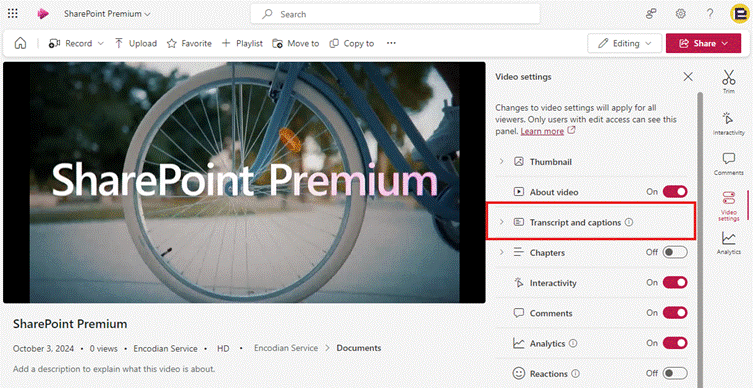
Figure 8.15 – Image of Microsoft Stream showing the Transcript and captions menu option.
- Click the Translate button
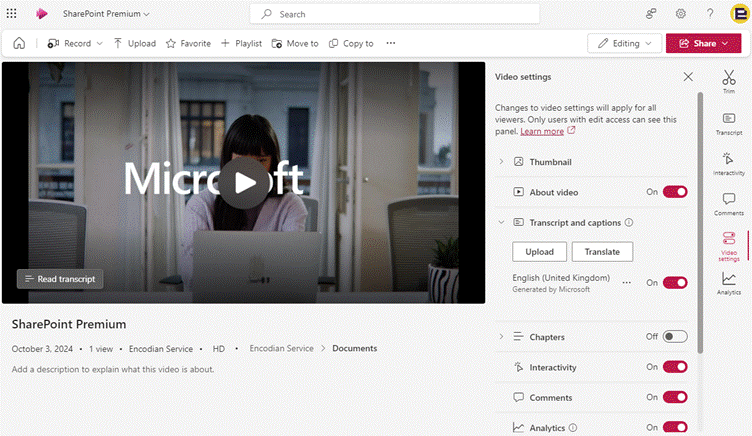
Figure 8.16 – Image showing the Microsoft Stream settings dialog with the ‘Transcript and captions’ option expanded.
Important Note
Your video must contain at least one transcript for the ‘Translate’ button to appear.
- In the Translate dialog select the transcript you want to translate in the From language dropdown and select the language you with to translate to.
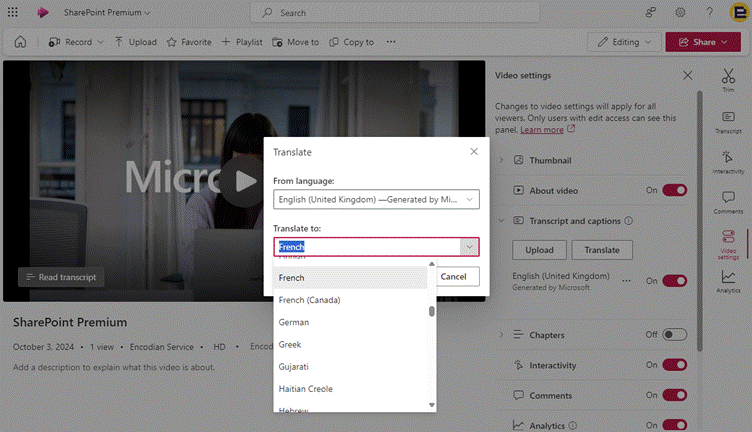
Figure 8.17 – Image showing the Microsoft Stream ‘Translate’ dialog.
- Select Translate.
- Once the translation has completed, select Transcript from the right-hand menu. From the drop-down you’ll be able to access the translations available for that video.
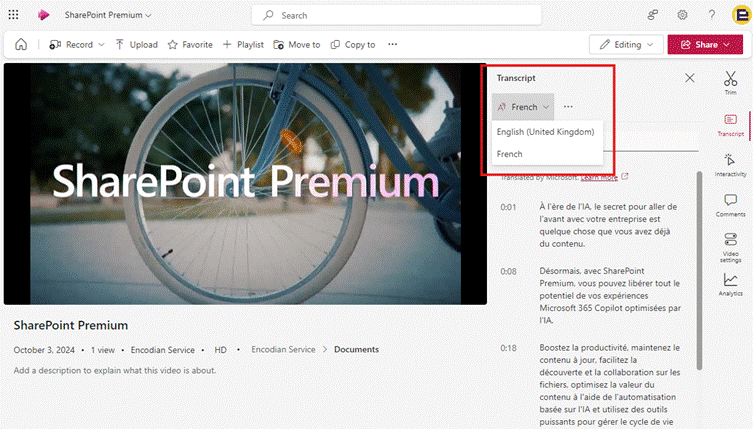
Figure 8.18 – Image showing the Transcripts available for a given video.
Important Note
For each successfully translated transcript you will be billed according to the character count of the source transcript. There are no charges for viewing a translated transcript.
Summary
In this chapter we have discussed and outlined several features within SharePoint Premium to assist multi-lingual organizations automate document management business processes. We have covered:
- To understand the features available within Document Translation in SharePoint Premium.
- To understand how to setup and configure Document Translation
- To understand the capabilities and supported languages available within the Document Translation service.
 Aaron Rendell